How to Use SiteScoop
Everything you need to go from a webpage to a spreadsheet in under a minute.
Which pages work best
SiteScoop detects repeated data patterns - things like product cards, table rows, search results, directory listings. The more consistent the layout, the better the extraction.
- Product listing pages (search results, category pages)
- Price comparison pages
- Business or supplier directories
- Data tables and comparison charts
- Job listing pages
- Real estate listing pages
- Homepages and marketing landing pages
- News articles and blog posts
- Login pages or paywalled content
- Pages that load content after a search (try scanning after you search)
💡 Tip: If you're on a site's homepage, navigate to a category or search results page first - that's where the structured data lives.
Scan, pick, export
The core flow is three clicks. Here's what each one does.
Click the SiteScoop icon, then Scan This Page
SiteScoop scans the page you're on and looks for repeated data patterns. After a moment it lists everything it found - product grids, tables, repeated items - with a count of how many rows each one has.
When you hover over a result in the list, the matching elements on the page behind the popup get highlighted in blue, so you can see exactly what will be extracted before you commit.
Click the pattern you want
Click any result in the list. SiteScoop immediately extracts all the matching rows and shows them in a data preview table inside the popup. Name, Price, URL, and Image columns are detected automatically.
If the result that says ⭐ Rich Product Info is in the list, that's Schema.org structured data embedded directly in the page - it usually gives the cleanest, most complete product data.
Export however suits you
Three export options appear at the bottom of the preview. Copy to Excel copies everything to your clipboard - paste straight into Google Sheets or Excel with Ctrl+V and the data lands in columns. Download as CSV saves a spreadsheet file. Download as JSON (Pro) saves structured data for developers.
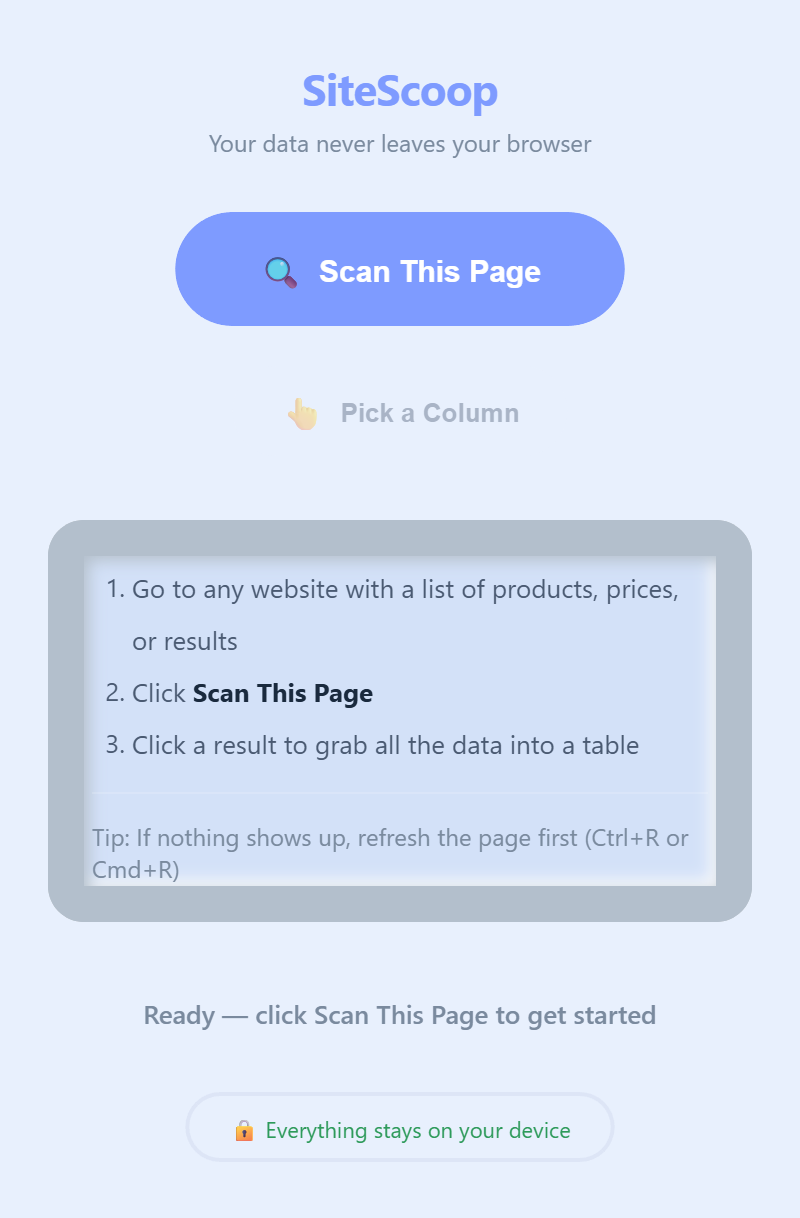
The SiteScoop popup on first open. Click Scan This Page to start.
When nothing is found
If the scan completes but the list is empty, it usually means one of a few things:
Some pages load their content dynamically. After the initial load, a refresh forces everything to render before SiteScoop scans.
Homepages, articles, and marketing pages rarely have the repeated structured data SiteScoop looks for. Navigate to a product listing, category page, or search results page instead.
If the page has the data you need but auto-scan doesn't detect it, the Pick a Column tool lets you point at any element directly. See the section below.
Wait a few seconds for the page to fully load, then scan again. Infinite scroll pages especially need a moment before all the content is in the DOM.
Pick a Column (manual selection)
When the automatic scan doesn't find what you need, Pick a Column is the manual fallback. It works on any page, regardless of whether auto-scan detected anything.
- Click Pick a Column in the popup. The popup stays open and the page behind it becomes interactive.
- Move your mouse over the page. Elements highlight as you hover - you're looking for one item from the list you want to extract (one product card, one row, one result).
- Click that element. SiteScoop finds all similar elements on the page and extracts the text from each one as a column.
- The data appears in the preview table, and you can export it from there.
💡 Tip: Pick a Column works best when you click something that repeats - a product title, a price, a company name. It extracts that element and all its siblings across the page.
Custom columns (Pro)
Pro users can build a table with exactly the columns they want, named however makes sense for their workflow.
- Click Pick a Column.
- Click any element on the page - for example, a product name. SiteScoop extracts all the matching names and shows them as a column.
- Click Pick a Column again and click a different element - a price, for example. It adds as a second column alongside the first.
- Repeat for each piece of data you want. Each click adds another column to the table.
- Name each column whatever you like directly in the preview table before exporting.
This approach works well on pages where auto-detection picks up the wrong pattern, or where you want a very specific subset of the available data.
Multi-page extraction
When your data spans multiple pages of results, SiteScoop can follow the pagination automatically.
After extracting from the first page, two buttons appear at the bottom of the data preview:
💡 Tip: SiteScoop detects the "next page" link automatically. If a site uses infinite scroll rather than numbered pages, scroll down to load more content before scanning.
Export options
Copies all rows to your clipboard in tab-separated format. Paste with Ctrl+V (or Cmd+V) directly into Google Sheets, Excel, or Numbers. The data lands in separate columns automatically - no import dialog needed.
Saves a .csv file you can open in any spreadsheet application. Includes a UTF-8 byte order mark so Excel opens it correctly without garbling special characters.
Saves a structured .json file. Useful for developers who want to process the data programmatically or feed it into another tool.
Questions or something not working?
The extension is new and actively being improved. If you hit a page that should work but doesn't, or a feature that's confusing, feedback is genuinely useful.
Leave a review See Pro features